Active@ Disk Image

Hard Drive Backup Software

Downloads | Products | Support | Partners | Contacts  
Active@ Disk Image


Active@ Disk Image Support Center
Users Guide


Selecting a Source Disk or Partition

Select a disk or a partition that you want to clone.

If you select a disk, all its sectors (with all partitions) will be selected.
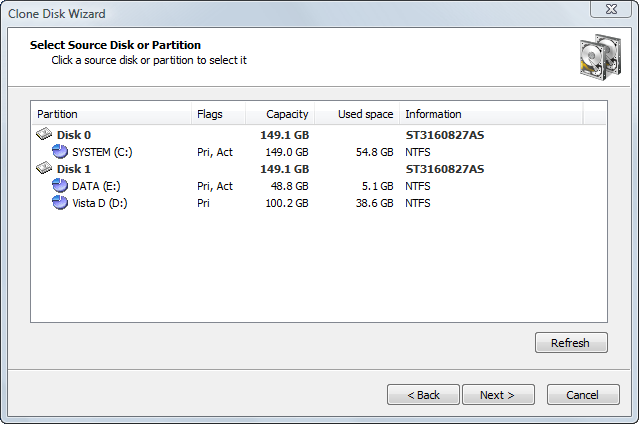
Information in this list is presented in five columns.

  • Partition - The name of the hard disk or of the partition in the format <volume label>(<drive letter>:) 
  • Flags - The type of the partition. Options are:
    • Pri - Primary partition
    • Act - Active (bootable) partition
    • No flags indicate a logical drive
  • Capacity - The full partition size.
  • Used space - The size taken by current data stored in the partition. This shows the amount of data to be backed up.
  • Information - For a partition - the file system type. For a hard disk - the name in the BIOS.

Note

Because you can clone only one partition or disk at a time, you may select only one item. 

See Also

Cloning a Partition

Cloning a Whole Disk


Previous Contents Next
Active@ Disk Image
Active@ Products

Active@ Boot Disk
is a bootable Live CD/DVD for system recovery purposes.
Active@ File Recovery
recovers data after formatting or loss of partitions.
Active@ KillDisk
is a disk eraser software for secure formatting of hard drives. DoD 5220.22-M compatible.
Active@ Password Changer
is a DOS-based solution for resetting local user passwords.
Active@ Partition Recovery helps to recover deleted partitions and logical disks on hard drives.


Send Feedback | Report an Error

Active@ Data Recovery Software 2008

DownloadBuyLearn more