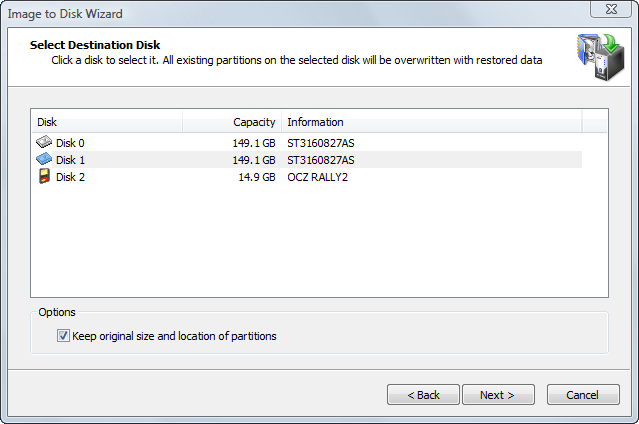
After you have selected a whole disk image to restore, you must select a destination disk.
Select a target disk to receive restored data from the disk image archive. The disk that you select must be big enough to hold all the data in the disk image. If you select a disk that is too small, the Next button is disabled.
If you restore more than one disk or partition, the target disk containing the new partition being created is marked with  icon here. It cannot be selected as a target disk here.
If the destination disk has the same disk geometry (sectors per track and tracks per cylinder) as the original one and is the same or larger in size, you will see the option "Keep original size and location of partitions" enabled when you select that disk.
If you leave this option checked, all partitions will be replaced to exactly the same place they were before and no partition resizing will take place.
This might be especially useful when you are restoring a system partition and do not want the operating system to detect that it has been repositioned.
After you click Next, an attempt is made to lock the target disk for exclusive access. If the target disk is being used by another application or by the operating system, an error dialog box appears.
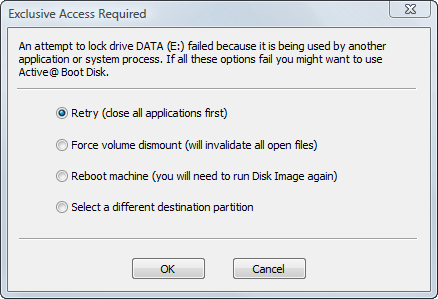
Select one of the solutions and click OK to continue.

