Active@ Disk Image

Hard Drive Backup Software

Downloads | Products | Support | Partners | Contacts  
Active@ Disk Image


Active@ Disk Image Support Center
Users Guide


Searching for Files and Folders

To locate specific files and folders:

  1. If you know exactly where the files or folders are located, you can use the direct location procedure. After the disk image  has been opened, manually navigate to the folder path the same way as you would in Windows Explorer. 
  2. If you are not certain where the deleted file or folder is located, try the Search mode. Select a drive or folder and click Search on the toolbar, or right-click the drive or folder and choose Search in the context menu. Do the following in the Advanced Search dialog box:
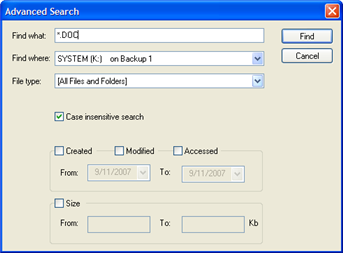
    1. To find a file by name, enter the file name in the Find what field. Advanced Search will search for files that match the name. You may enter part of the file name and use an asterisk (*) to represent the rest of the name.
    2. To find a file in a specified location, choose a location in the Find where drop-down list.
    3. To search by file type, choose a file type from the File type drop-down list.
    4. To use case sensitive search, clear the Case insensitive search check box.
    5. To search for a file based on a date, select the Created, Modified or Accessed check boxes and enter a From and To date range.
    6. To search for a file based on the size of the file, select the Size check box and enter a From and To size range.
    7. Click Find.
       
         
  3. After the search is complete, examine the Search Results virtual folder.

Note

When you are using a search pattern in Advanced Search, it is the same pattern recognized when searching in Microsoft Windows.
The asterisk symbol (*) in the pattern means that at this place can be zero or any number of any symbols.
 
Examples:
	*          - All files on the drive or in the folder
	*.TXT      - All files with "TXT" extension
	My*.*      - All files starting with "My"
	MyFile.txt - Search for the file named "MyFile.txt"


Previous Contents Next
Active@ Disk Image
Active@ Products

Active@ Boot Disk
is a bootable Live CD/DVD for system recovery purposes.
Active@ File Recovery
recovers data after formatting or loss of partitions.
Active@ KillDisk
is a disk eraser software for secure formatting of hard drives. DoD 5220.22-M compatible.
Active@ Password Changer
is a DOS-based solution for resetting local user passwords.
Active@ Partition Recovery helps to recover deleted partitions and logical disks on hard drives.


Send Feedback | Report an Error

Active@ Data Recovery Software 2008

DownloadBuyLearn more