After you have selected a source partition to clone, you must select a destination partition.
In the Selecting a Destination Partition page, choose a target to write the cloned data from the source partition. You may clone the source partition either to an existing partition - where all data will be overwritten - or to unallocated space.
The target partition must have enough space to hold all the data from the source partition.
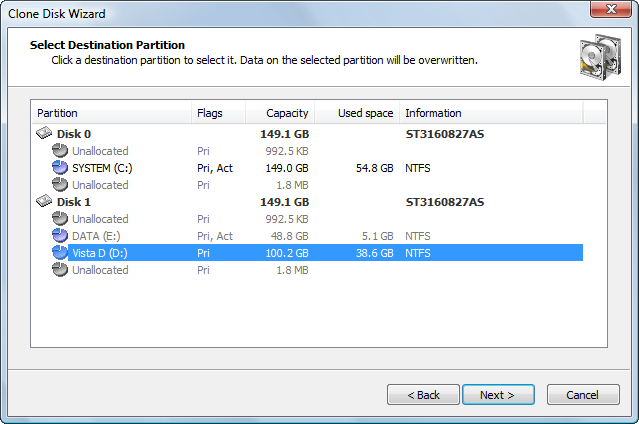
The Next button will remain disabled until you select a partition that is large enough.
Because a clone is an exact copy of the source partition, you cannot change the size of the destination partition. If you choose a destination partition that is larger than the source, free (unallocated) space will appear after the cloned partition.
Target partition size is not the only condition that must be met when you are restoring to a partition.
Unallocated space located on the same level as primary partitions cannot serve as a target for restoring if the following exist:
You cannot restore an extended partition onto itself. In the selecting partition page, an extended partition is represented by a green icon because it serves as a container for logical drives which can serve as a target.
If the selected target is not unallocated space, after you click Next, an attempt is made to lock the target partition for exclusive access. If the target partition is being used by another application or by the operating system, an error dialog box appears.
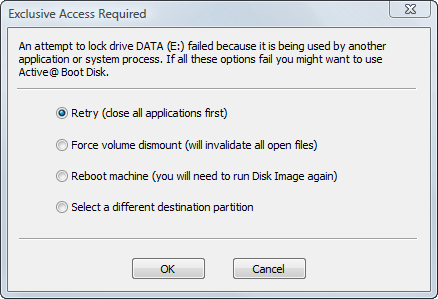
Select one of the solutions and click OK to continue.

