Configure the compression settings, image splitting, password protection and enter a description for the archive.
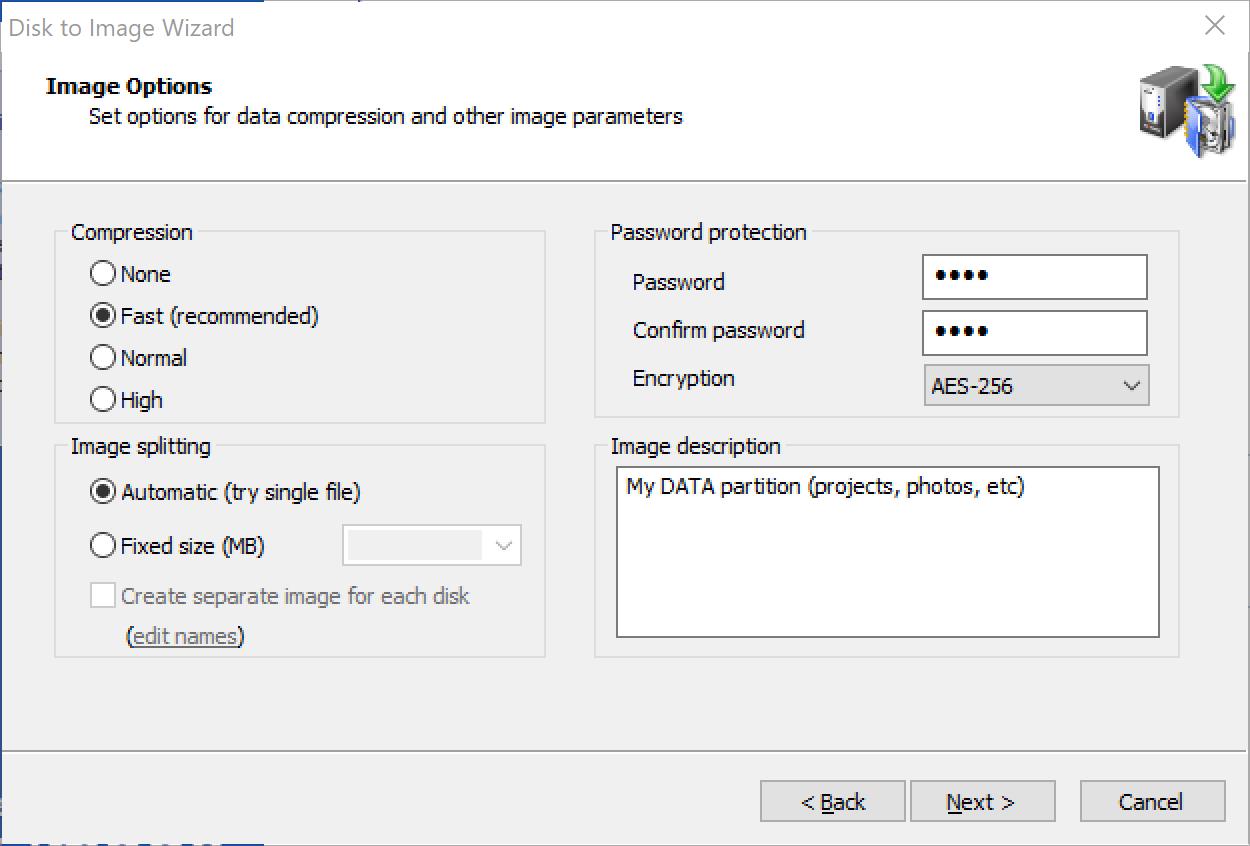
The effectiveness of compression depends on the type of data in the files you are going to back up. Text documents can be reduced in size significantly. Trying to compress picture files or data that is already compressed, (for example, ZIP files) will yield a small file size difference.
There are three compression settings indicated here by the affect each one has on the speed of the operation:
When you compare the size of an image created using Normal and an image created using High options the difference in file size is not significant. Because high compression takes significantly more time, use it only when you need to get the smallest possible image and when speed is not important.
When burning a backup directly to CD/DVD, image compression is not available and the only compression option enabled is None.
In most cases selecting a Fast compression method is a straightforward choice giving both speed and image size benefits, however here are some more detailed explanations behind the compression methods.
There 4 methods available:
Each of them is progressively does a better compression but takes more time to do the job. The tests shown here are designed to illustrate the difference between the methods but their results highly depend on kind of data being compressed as well as hardware specifications.
| Compression | Speed | Resulted size |
|---|---|---|
| 23100 MB/s | NONE (copy) | 100% |
| FAST | 405 MB/s | 62.5% |
| NORMAL | 225 MB/s | 57.4% |
| HIGH | 68 MB/s | 43.6% |
| Compression | Speed | Resulted size |
|---|---|---|
| NONE (copy) | 23300 MB/s | 100% |
| FAST | 736 MB/s | 46.4% |
| NORMAL | 286 MB/s | 46.1% |
| HIGH | 80 MB/s | 38.0% |
These tests were performed on i7-7700K desktop and show the pure performance of different compression methods which itself varies significantly on type of data used. Text files normally gives a good compression ratio (because compression engine has good chances to find repeated data and pack them) but takes longer due to necessity to find matches. Program files (executables) are similar to text in what they contain generally large amount of sparse data and can yield even bigger compression. JPEG and video files on the other hand are almost not compressible since they contain already compressed data.
Those are artificial tests comparing compression itself, but in real life there are also different factors involved, like HDD speed for source and target disks, CPU speed and number of cores, kind of data being compressed.
i5-6500 @3.2 GHz, medium performance desktop, backup of system partition (21.3 GB) on HDD (7200 RPM) to another HDD (7200 RPM).
| Compression | Time | Image size, GB | Speed | Resulted size |
|---|---|---|---|---|
| NONE (copy) | 4:05 | 22 GB | 89 MB/s | 100% |
| FAST | 3:47 | 14.7 GB | 96 MB/s | 69% |
| NORMAL | 4:15 | 15.1 GB | 85 MB/s | 70% |
| HIGH | 4:26 | 12.7 GB | 82 MB/s | 60% |
i7-7700K @4.2 GHz, high performance desktop, backup of data partition, mostly project files (178 GB) from fast HDD (7200 RPM) to slower HDD (5400 RPM).
| Compression | Time | Image size, GB | Speed | Resulted size |
|---|---|---|---|---|
| NONE (copy) | 52:55 | 178 GB | 57 MB/s | 100% |
| FAST | 53:38 | 142 GB | 57 MB/s | 80% |
| NORMAL | 53:34 | 140 GB | 57 MB/s | 78% |
| HIGH | 52:33 | 131 GB | 58 MB/s | 73% |
It is obvious here that overall speed is mostly determined by hard disk speed and not by choice of compression method. In first test the target HDD is significantly faster than the one in the second test, resulting in much higher speed despite being run on less powerful machine.
Generally, if machine is powerful enough, even high compression can be quite satisfactory in terms of the speed while giving the best compression.
On the other hand, if CPU is struggling with compressing data, the speed impact could be drastic to extent prohibiting compression altogether (as an example if run on very slow Atom based PC, creating compressed image can take several times more time than not compressed image).
Again, of both CPU and disk are fast (like in case with SSD), both CPU and disk speed might be equally important and Fast compression method could be more beneficial.
All image contents can be written into one file, depending on the size of the partition. When a disk image can be written into one file, the image file and the archive are the same thing. When Image splitting is set to Automatic (try single file), the resulting archive may be written into one file.
Archive backups can be written to multiple files. Here are the situations when it is necessary to split the image:
If you select the Automatic (try single file) option, the archive will not necessarily be written into one file. If the system runs out of free disk space on the disk where you are saving the backup or if you are storing an image file on disk with a FAT file system, Active@ Disk Image automatically splits the archive into multiple files and prompts you for the path to write the next file.
To protect sensitive data on a disk image, use password protection. Choose a password with a maximum of 16 characters. Type the password in the Password and Confirm password fields. Store your password in safe place. You will not be able to restore data from an image if you forget the password.
PRO version of Disk Image supports an image encryption in addition to password protection. If you select encryption option [None] but enter a password, an image will be protected from non-authorized access but it's content will not be encrypted and though you cannot open the image without knowing a password in Disk Image application, one can get raw data and try to descramble them and potentially extract a sensitive information. Encrypting the image protects it's content with a widely accepted strong encryption methods making such access impossible.
There are three options to encrypt an image: using AES-128, AES-192 and AES-256 algorithms. They are considered modern and safe encryption methods. The difference between them is key length, the bigger the key length, the harder to decipher data using a brute force method, though the encryption time is longer.
Password for all incremental images in a series is shared and can be set only for full backup. If you are creating an incremental or differential image, the password field will be disabled.
You may give a short description to the contents of your image. Enter descriptive text (maximum 1,024 characters) into the Image description text box. In this text box, you may use the Enter key to make line breaks.
If the data that you are saving is confidential, be aware that the text that you enter into the Image description text box is stored as clear text. You are not required to use a password to view this description, so do not place confidential information here.
If you selected partitions belonging to different disks you have an option to split data into separate image files, placing data for each disk to separate image. To do so, check "Create separate image for each disk" option. In this case the image name and location you specified before will become a root folder where two or more images for each disk will be placed. The names for these images are made based on disk's numbers and names. You can change them by clicking on "edit names" link.
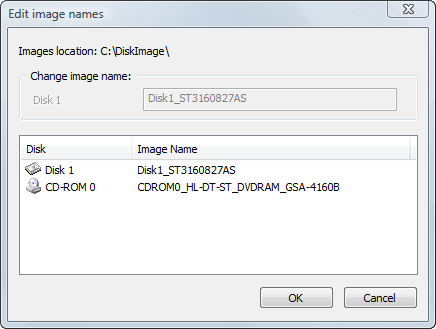
You may rename the default names by selecting a name in the list and editing it in the text box above. Any CD/DVD images will be placed separately from the rest of the data automatically despite of "Create separate image for each disk" checkbox state, which controls all other data types.

