In this wizard screen, specify where to write the disk image archive.
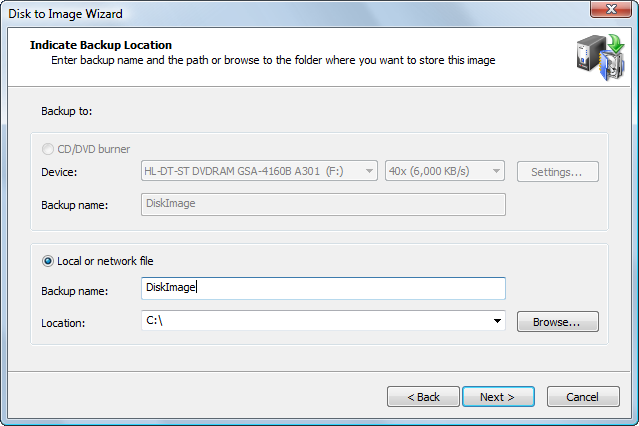
When creating a Backup Disk Image, you have an option to select between writing an image into a file and burning it on CD/DVD (raw images can be saved to a file only).
If you choose burning to CD/DVD, you need to select a burning device and enter a backup name. If you decide to store a disk image to a file, you need to provide a backup name and location. By default a folder named \Backups on a disk other than from which you are making a backup from and has the most of free space is suggested.
When creating an image, all files belonging to it (.ADI or .DIM data files, .XML configuration file and optional text .LOG file) will be placed in one folder with the same name as the backup name.
For example, if you choose a backup location such as C:\Backups and a backup name DiskImage, the main data file will have the name C:\Backups\DiskImage\DiskImage.adi. If you burn the disk image to CD/DVD, no extra folder is created and all files are placed in the root.
You may select only one check box. If you select a disk, all partitions belonging to the disk will be selected.
When you choose to backup to a CD/DVD burner, you have to insert a blank disc and select a desired burn speed.
You cannot move forward (Next button will be disabled) unless there's a writable media in target burner. You might also want to change default burner settings by clicking the Settings… button.
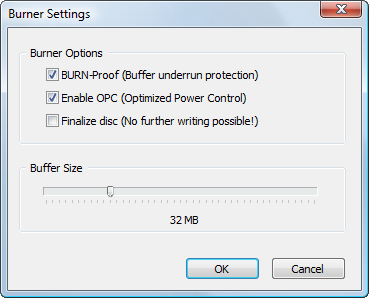
First two options enable hardware burning optimization and buffer under run protection. It is highly recommended to leave them on.
You cannot burn incremental or differential image to CD/DVD/Blu-ray disc.

