Choose how the restored partition will be used in the system. The restored partition may be Active, Primary or Logical.
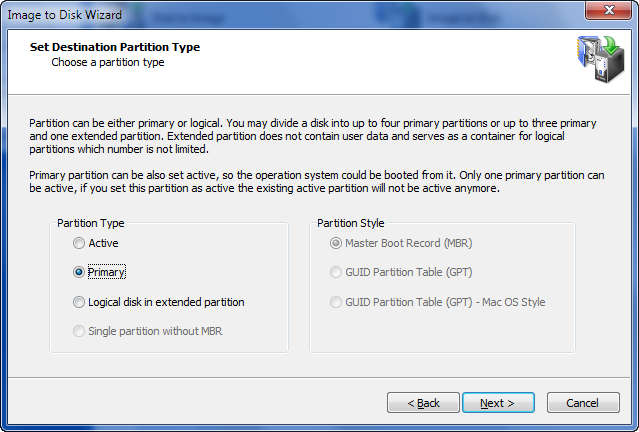
Active — A hard disk can have only one active partition. As an Active partition, it is automatically set as Primary as well. If the selected disk image is a bootable partition, you must choose Active in order to allow the system to boot from it. If the target disk already has a system residing in an active partition, when you restore a disk image into a new active partition you will replace the existing active partition. All data on the formerly active partition will remain intact, but you will not be able to boot from it anymore.
Primary — A hard disk can have up to four primary partitions.
Logical — A hard disk can have an unlimited number of logical partitions(the number of primary partitions is limited to three in this case). If the target disk does not have an extended partition, a new extended partition will be created and logical partitions will be placed in it.
Single partition without MBR — This option is available for USB flash drives only. Normally USB flash disks do not have an MBR and their single partition is placed starting from sector 0. Nevertheless it is possible to create a flash drive with an MBR. It might be the preferred option when drive must be made bootable.
If the image you're restoring contains only data, it does not matter what type of partition you choose.
Only one partition on a disk can be set to active (the bootable partition). Choose the type Active only when you are restoring a system partition and you want to boot from it. If you are restoring the image of a system partition only to retrieve the data from it, choose Primary or Logical.
Your type choices on this page depend on what kind of partition you have chosen to restore:
Starting from version 4, Active@ Disk Image supports restoring partitions to GPT disks. In Destination Partition Type you can now select not only partition type but also a partitioning scheme (partition style) which can be one of the following types:
GPT — is a standard implementation of the GPT partition scheme.
It is used by both Windows and Mac OS with minor differences. However, when a Boot Camp is installed on Mac OS X computer, Mac OS uses different schema which is referred as Mac OS style. Basically it's a hybrid of MBR and GPT.
Mac OS carries two structures simultaneously — it uses GPT for its own purposes and duplicates GPT records in MBR structure so it is understood by Windows. If you have a Mac disk partitioned with GPT which is dual-booted, use Mac OS style GPT for compatibility, otherwise use either MBR or GPT.
If you are restoring a partition to an already partitioned disk, partition style is locked and the choice of partition type is limited to suitable values. If you, however, restore an image to a blank disk, you have a choice of parltition style.

