Scheduling a Task
After you are done selecting objects to backup and specifying setting options you need to schedule the task in order to run it automatically. This dialog lets you select an appropriate launch condition.
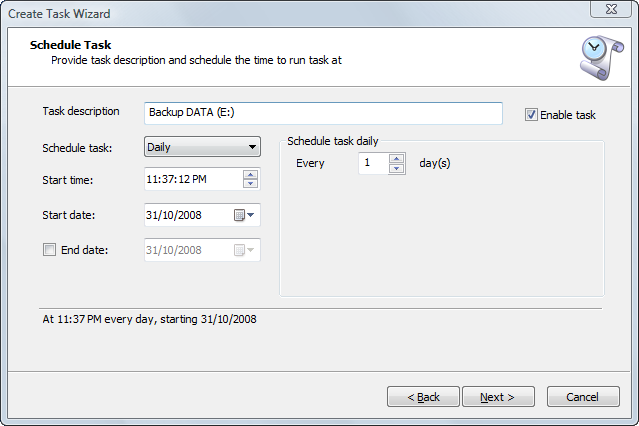
- Task description — give it a meaningful name in order to quickly find out what will be backed up. It is not the same as the image description which you entered in the Options dialog.
- Enable task — if you don't want the task to be executed yet leave the check box blank. The status of the task will be disabled.
- Schedule task — the field that allows you to select a type of trigger upon which the task should be executed. You can choose between Daily, Weekly, Monthly, Once, At system startup, At user logon. Please note, than the control set is changed as you select different trigger types.
- Start time and date — the initial time when the trigger will execute.
- End date — allows you to limit the period of the task execution.
Task scheduling is not supported when disk image software Active@ Disk Image is running under Windows PE (from a Boot Disk).

