Selecting a Disk or a Partition
Select a disk or a partition here to back up. This list displays the disks installed in your system and the current partitions on them.
Because a raw image supports only one partition or disk per image, you may enter a new image name into the File name field or use the Browse. . . button to select an image location in Open Backup File dialog box.
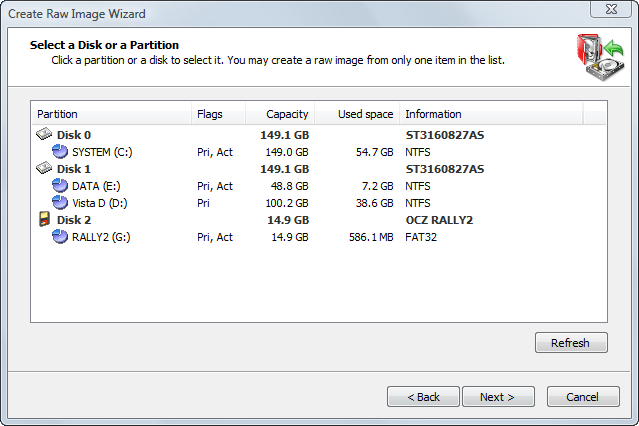
Information in this list is presented in five columns.
- Partition — The name of the hard disk or of the partition in the format <volume label>(drive letter)
- Flags — The type of the partition. Options are:
- Pri — Primary partition
- Act — Active (bootable) partition
- No flags indicate a logical drive
- Capacity — The full partition size.
- Used space — The size taken by current data stored in the partition. This shows the amount of data to be backed up.
- Information — For a partition —the file system type. For a hard disk — the name in the BIOS.

